
Your password opens it, with or without FolderSafe
The image password is your master password. If FolderSafe disappears, double-click data.sparsebundle in Finder, type the password, and your files are there.
Free beta · macOS 13+ · Apple silicon and Intel
You gave your AI tools the run of your Mac. Keep a fortress inside it: put your archives in FolderSafe, lock it, and they turn into AES-256 ciphertext until you unlock them with your password or Touch ID.

Short answer: FolderSafe stores a folder's contents in a standard macOS AES-256 encrypted disk image and mounts it back at the same folder path when you unlock it. While it is locked, the folder is empty and read-only, and the data on disk is ciphertext: no app, script, AI agent or administrator (sudo/root) can read it without your password. While it is unlocked, it behaves like any folder, so anything running as you can read it. Lock it when you are done.
About two minutes the first time.
Pick a place and a name, set a master password and write down the 12 recovery words. FolderSafe creates the encrypted image and tests it before it hands it to you.
Use Move In to copy folders into it. Every file is checked against the original. Your originals stay where they are until you choose to move them to the Trash.
Click Lock, or let it lock itself when your Mac sleeps. The folder goes back to an empty, read-only folder with a lock icon.
AI coding agents and assistants now run with broad access to your files, often with every permission switched on so they can work without asking. Reports in 2025 and 2026 described malware that drove local AI command-line tools to scan Macs for keys and wallets, and agents that deleted home folders by mistake. Taking access away again is hard and easy to get wrong. FolderSafe takes the other route: leave the city open, and lock the treasure in a keep.
Deny lists, sandboxes and per-tool rules. They differ for every tool, they leak when one is missed, and they get in the way of the work you want the agent to do.
Cold files that no tool needs day to day go into an encrypted folder. Locked, they are ciphertext for everyone. You open the keep only when you need something, then close it again.
Encryption is only useful if you can always get back in. These rules are in the core and covered by tests.
The image password is your master password. If FolderSafe disappears, double-click data.sparsebundle in Finder, type the password, and your files are there.
Master password, Touch ID (a key in this Mac's Secure Enclave) and a 12-word recovery phrase. The phrase resets a forgotten password; Touch ID never stores the password in plain text.
On creation FolderSafe mounts the image, writes a marker, ejects it, unlocks it again with your password and checks the recovery phrase. Changing the password keeps both old and new copies until the change is confirmed.
Real screenshots from version 0.1.0.
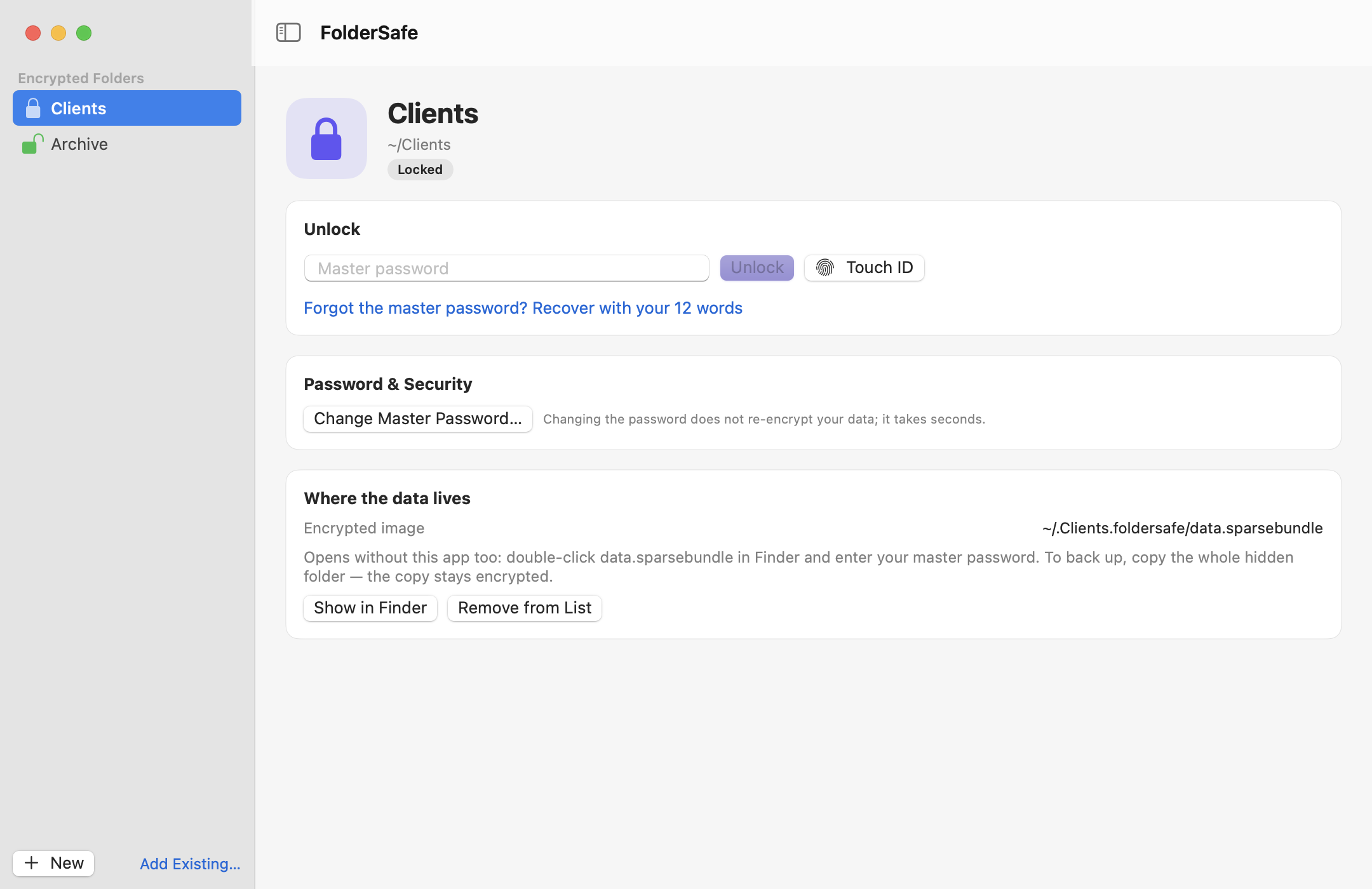
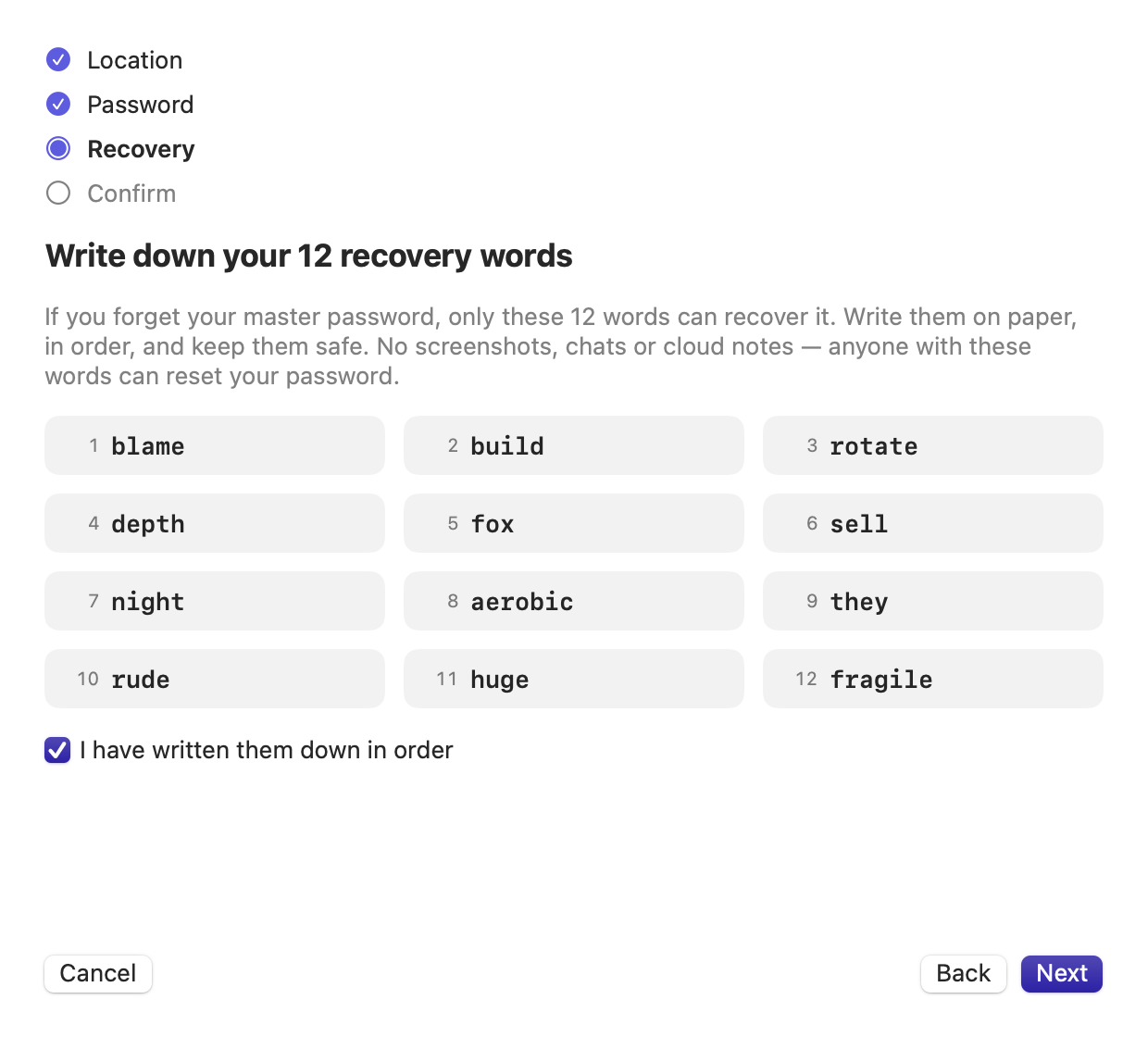
FolderSafe uses the same encryption as Disk Utility. What it adds is the everyday part: one place to unlock, Touch ID, recovery, auto-lock and a folder that stays where it was.
| Disk Utility image (by hand) | FileVault | FolderSafe | |
|---|---|---|---|
| Protects after you log in | Yes, until you open the image | No, the whole disk is unlocked at login | Yes, until you unlock the folder |
| Can sudo/root read it? | Not while closed | Yes, once you are logged in | Not while locked |
| Files appear at the same folder path | No, as a separate disk under /Volumes | Not applicable | Yes |
| Touch ID unlock | No | Login only | Yes |
| Forgotten password | Data is lost | Recovery key or Apple Account | 12-word recovery phrase |
| Auto-lock on sleep, screen lock, idle | No | Not applicable | Yes |
| Needs extra software to open | No | No | No, the image opens in Finder |
Old contracts, tax records, scans of IDs, client folders from past projects. Keep them on the Mac, out of reach of any agent until you open them.
Other admins on the machine can see your home folder. They cannot see inside a locked FolderSafe folder.
Lock first, then try the new tool, plugin or package. If it misbehaves, your archive was never readable.
Copy the hidden data folder to a drive or a cloud folder. The copy stays encrypted; only your password opens it.
Things you open a few times a year and would hate to see leaked.
Recovery codes, exported keys and old wallets that should not sit in plain files next to your code.
A security tool should say clearly where it stops.
.name.foldersafe folder is deleted or the disk fails, the data is gone. Keep a copy of that folder elsewhere; the copy stays encrypted.No. While it is locked, the files exist only as AES-256 ciphertext inside the disk image, and the folder you see is empty and read-only. Root can copy the encrypted image but cannot read it without your password. Once you unlock it, anything running as you can read it, so lock it again when you are done.
Use Forgot the master password? and enter the 12 recovery words you wrote down at setup. FolderSafe opens the folder and lets you set a new password. Without the password and without the words, the data cannot be recovered.
Yes. The data is a standard macOS encrypted disk image. Double-click data.sparsebundle in the hidden .name.foldersafe folder and enter your master password, or run hdiutil attach data.sparsebundle in Terminal.
Yes, the app is free during the beta. A paid Pro edition with encrypted cloud backup is planned; the free features will stay free.
Download FolderSafe, move your cold files in and lock them. Your AI tools keep working; your archive stays yours.
Free beta · signed and notarized by Apple · macOS 13+ · 2.6 MB